Watching a builder work on your house. You do not need to know which drill they use. You need to hear “I will take this wall down now” early enough to say “wait, not that wall”.
The same is true for Claude Code. The screen fills with lines while it works, and many of them look like programmer text. You do not need to read them. Read the plain sentences in which Claude says what it is doing. They are enough to see when it goes the wrong way, and to stop it right there.
The three parts of the screen
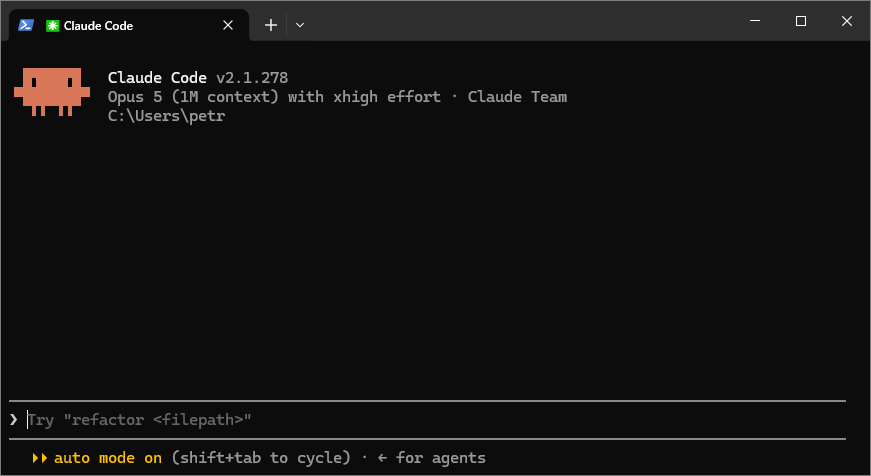
Claude Code in Windows Terminal, just after start. Screenshot: Petr.
- Top: the version, the model and effort, your plan, and the folder it works in. Whatever is in that folder, it can read. Check this line first: wrong folder, wrong answers.
- The
>line: where you type. - Bottom: the permission mode, here
⏵⏵ auto mode on. If you set up a status line, it sits here too.
When you ask something, the work appears above the > line as it happens.
Three kinds of line
Here is what a short task looks like:
> what is in this folder?

⏺ I'll look at the files in the folder first.

⏺ PowerShell(Get-ChildItem -Name)
  ⎿  budget.xlsx  notes.md  offer.pdf

⏺ Read(notes.md)
  ⎿  Read 42 lines

⏺ The folder has three files: a budget, your meeting notes from
Monday, and a PDF offer from a supplier.| Line | What it is | Do you read it? |
|---|---|---|
⏺ I'll look at the files... | A sentence from Claude: what it is about to do, or what it found. | Yes. This is the part written for you. |
⏺ PowerShell(Get-ChildItem -Name), ⏺ Read(notes.md) | A [[Tool | tool]] call. The word before the bracket is the tool, the part inside is what it works on. |
⎿ ... | The result of the tool call, often shortened. | No. This is for the model. |
On a Mac you see Bash(ls) in that place. On Windows you will mostly see PowerShell, and with Git installed sometimes Bash too. Same job: running a command.
On a bigger task Claude also shows a checklist of its steps and ticks them off as it goes. That is the easiest progress bar you will get.
The tool names you will see most
| On the ⏺ line | What it does |
|---|---|
Read | Reads a file: text, PDF, picture |
Write | Makes a new file |
Update | Changes part of a file |
Search | Finds files, or text inside files |
PowerShell, Bash | Runs a program or a command: the big one |
Web Search | Searches the internet |
Fetch | Opens one web page |
Agent | Sends a helper to do part of the work |
claude.ai Gmail - search_threads (MCP) | A connector’s tool: the connector’s name, then the action. The action may also show as a short title |
Programs such as gws or ffmpeg do not get their own line name. Claude runs them with PowerShell or Bash, so you see the program inside the brackets. See Tool and Command-line program.
"It is all gibberish to me."
Many people believe they must understand every command before they may use an agent. You do not. The tool lines are for the harness, and in Auto mode a second model checks the commands before they run (see Permission mode). Your job is the one you are good at: reading the plain sentences and judging whether the direction is right.
When to step in
Each ⏺ line is one round of the agent loop. Most wrong turns show up in the first few rounds, and that is the cheapest moment to stop. Step in when a sentence says something like:
- it is opening a file or folder you did not mean,
- it misunderstood the task (“I’ll rewrite the whole report” when you asked for a summary),
- it is about to change something you wanted to keep,
- it is going round in circles, trying the same thing again and again.
Two ways to step in:
- Press Esc. It stops at once. The current step is cancelled and Claude waits. Type what you want instead, and it continues from there with your correction. Nothing is lost.
- Just type. You can type a correction while it works and press Enter. The message waits above the input box, and Claude reads it before its next step. Good for “also include the PDF” or “use the September numbers”.
If it already changed files you did not want changed, Esc Esc opens the rewind menu. See Working safely for what rewind can and cannot undo.
The full story: the transcript
The main screen shortens things. Ctrl + O opens the transcript: every message, every tool call with its full result, and the time of each step. Press Ctrl + O again to go back. You will rarely need it. It is useful when you want to know exactly which files it read, or when you ask a colleague for help.
In VS Code and the desktop app
The same three kinds of line, in a different look:
- VS Code: Claude’s sentences appear as normal chat messages. Each tool call is a small block with the tool name and the file; click it to open the details. File changes open as a before/after comparison next to your files.
- Desktop app: the same idea: sentences as messages, tool calls as short lines you can open.
In both, the stop button next to the input box does what Esc does in the terminal.
Official documentation
Related
- Agent loop - what each ⏺ line is a round of
- Tool - what the tool names mean
- Working safely - stopping, undoing and the other safety habits
- Claude Code cheat sheet - Esc, Ctrl + O and the other keys
- Permission mode - who checks the commands so you do not have to