VS Code (Visual Studio Code) is a free editor from Microsoft. Programmers use it for code, but it is really a very good folder viewer with a text editor attached, and the Claude Code extension puts the agent in a panel next to your files. For many people this is the most comfortable client: you see every file Claude touches, and every change appears as a side-by-side before/after.
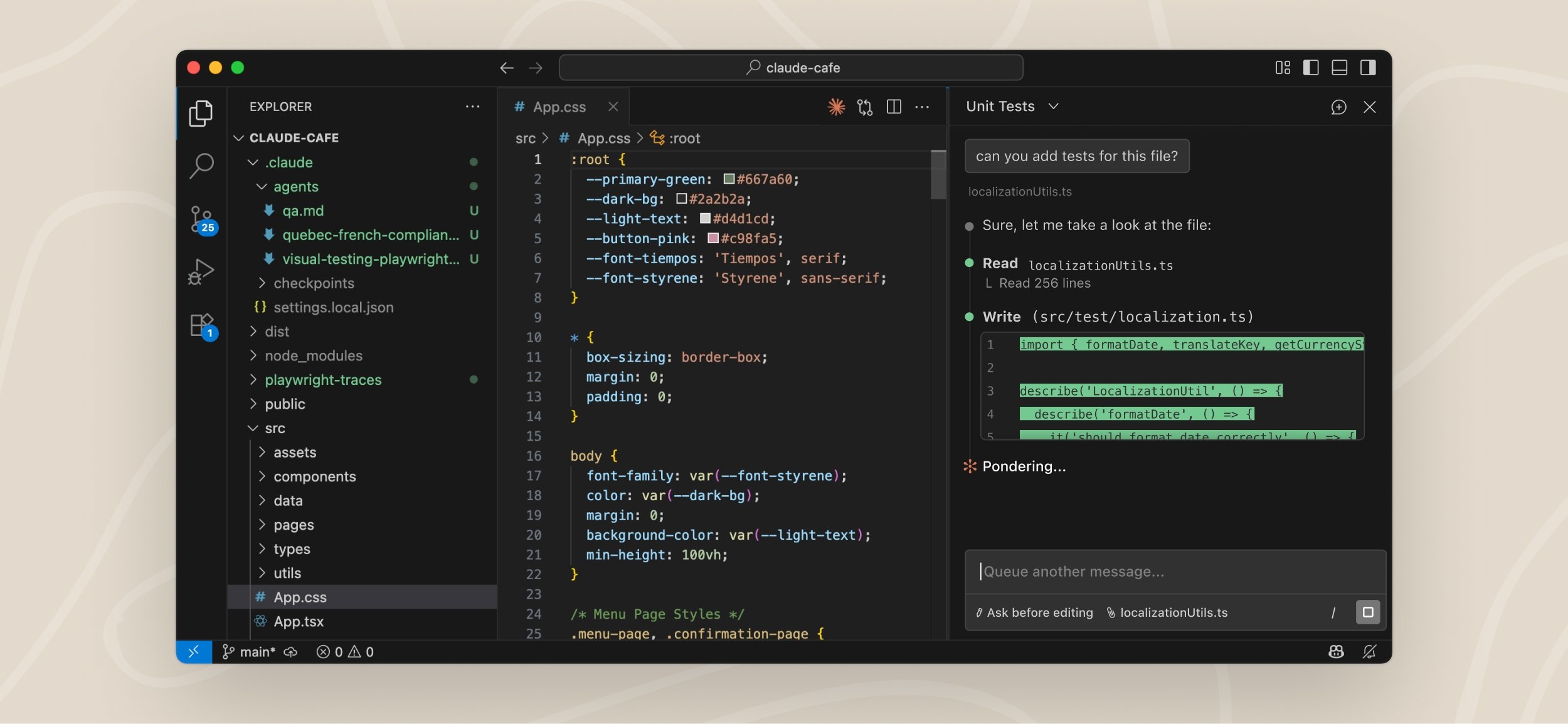
VS Code with the Claude Code panel on the right. Screenshot: Anthropic, Claude Code docs.
Step 1: Install VS Code
Download it from code.visualstudio.com and run the installer with the defaults. Windows and Mac both work.
Step 2: Open a folder
VS Code works on a folder, the same way Claude Code does. File menu, Open Folder, pick your project folder (for example Documents\ai-school). The folder’s files appear in the Explorer on the left. This is the same folder you see in Windows Explorer or Finder; nothing was copied.
Step 3: Install the Claude Code extension
- Press Ctrl + Shift + X (Mac: Cmd + Shift + X) to open Extensions.
- Search for
Claude Code. The one you want is Claude Code for VS Code by Anthropic. - Click Install. If nothing appears afterwards, restart VS Code.
Or install it directly from the Marketplace page. The extension brings its own copy of Claude Code, so you do not need the terminal installation for this to work.
Step 4: Open Claude and sign in
Look for the Spark icon (a small four-pointed star). It sits in the top-right toolbar when a file is open, and in the left Activity Bar always.
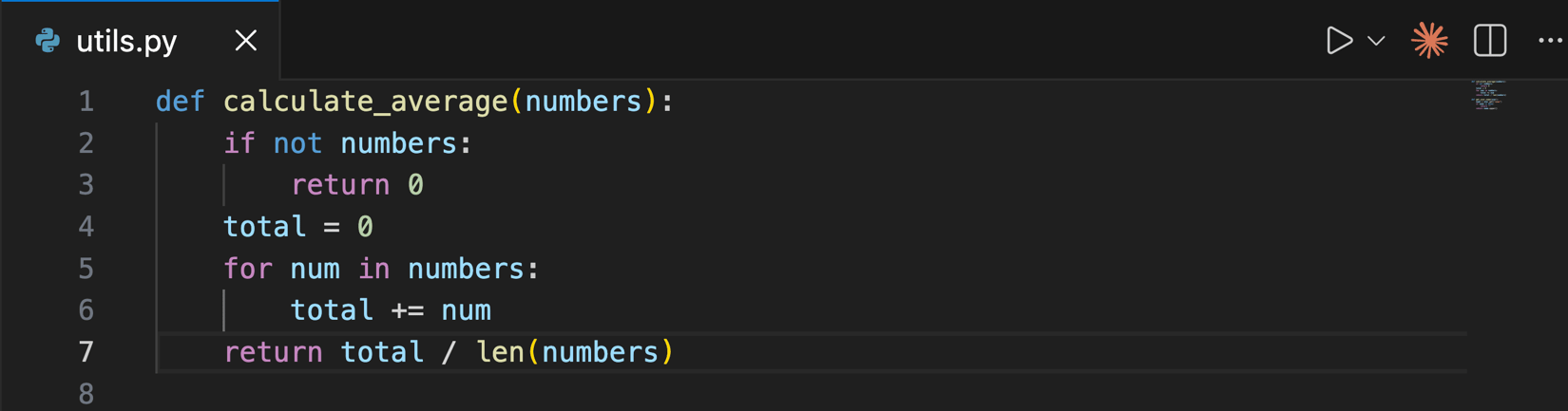
The Spark icon in the editor toolbar. Screenshot: Anthropic, Claude Code docs.
Click it. A panel opens with a Sign in button; your browser opens, you sign in with your work account, and you are back. A short “Learn Claude Code” checklist appears afterwards; it is worth the two minutes.
Step 5: Ask, then review
Type in the prompt box at the bottom of the panel and press Enter. Select some text in a file first and Claude sees the selection; press Alt + K (Mac: Option + K) to paste a reference to it into your prompt.
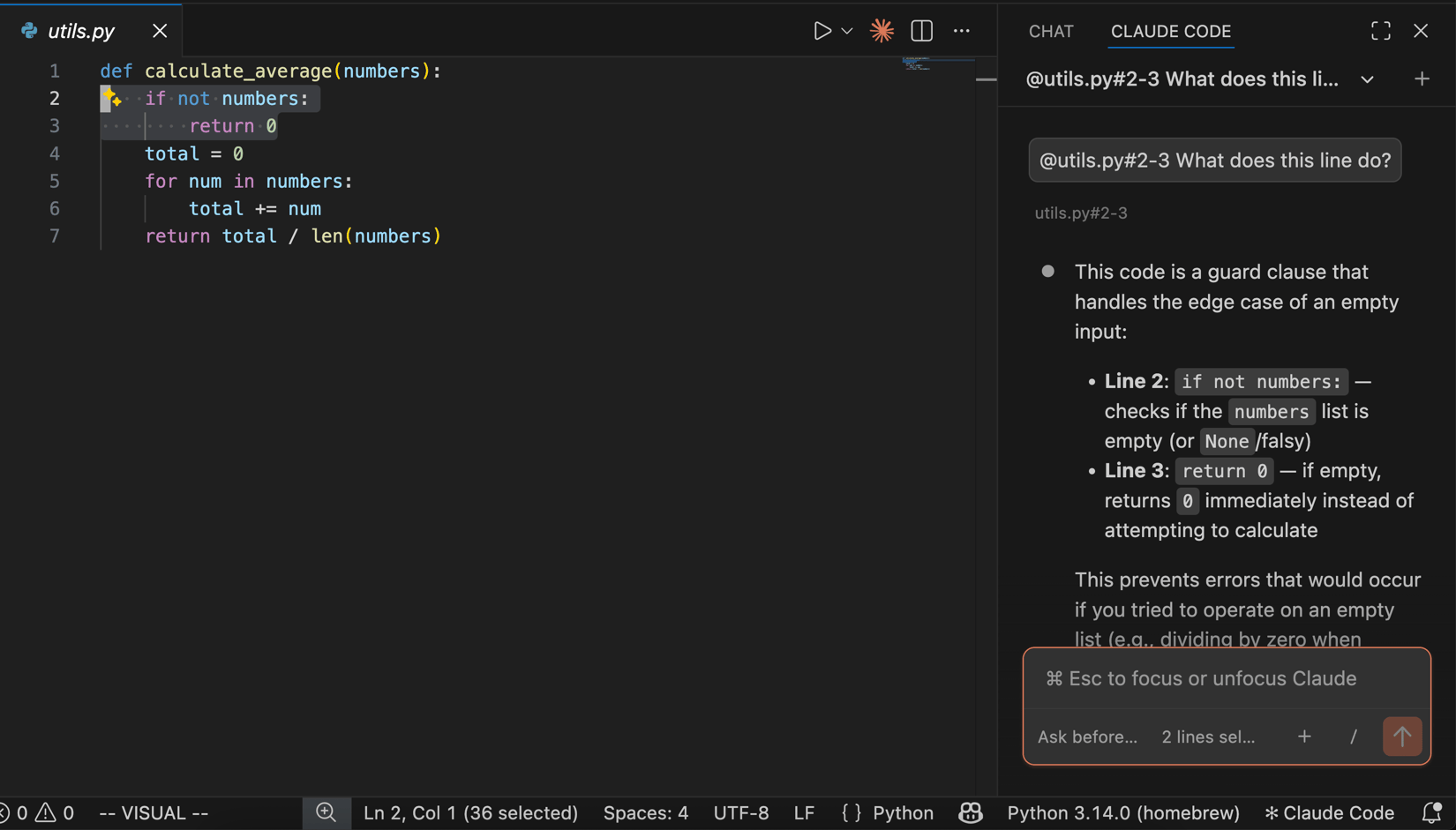
Asking about selected lines. Screenshot: Anthropic, Claude Code docs.
When Claude wants to change a file, what happens depends on the permission mode shown at the bottom of the prompt box. Click it to switch.
For anything bigger than a one-line change, start in Plan mode: Claude reads your files and writes out what it means to do, and nothing changes until you approve it. When you agree, pick “Yes, and use auto mode” and it gets on with the work.
The one thing VS Code does better than the terminal is showing you a change: every edit appears as a before/after comparison with an approve button, which is readable whether or not you know the language of the file.
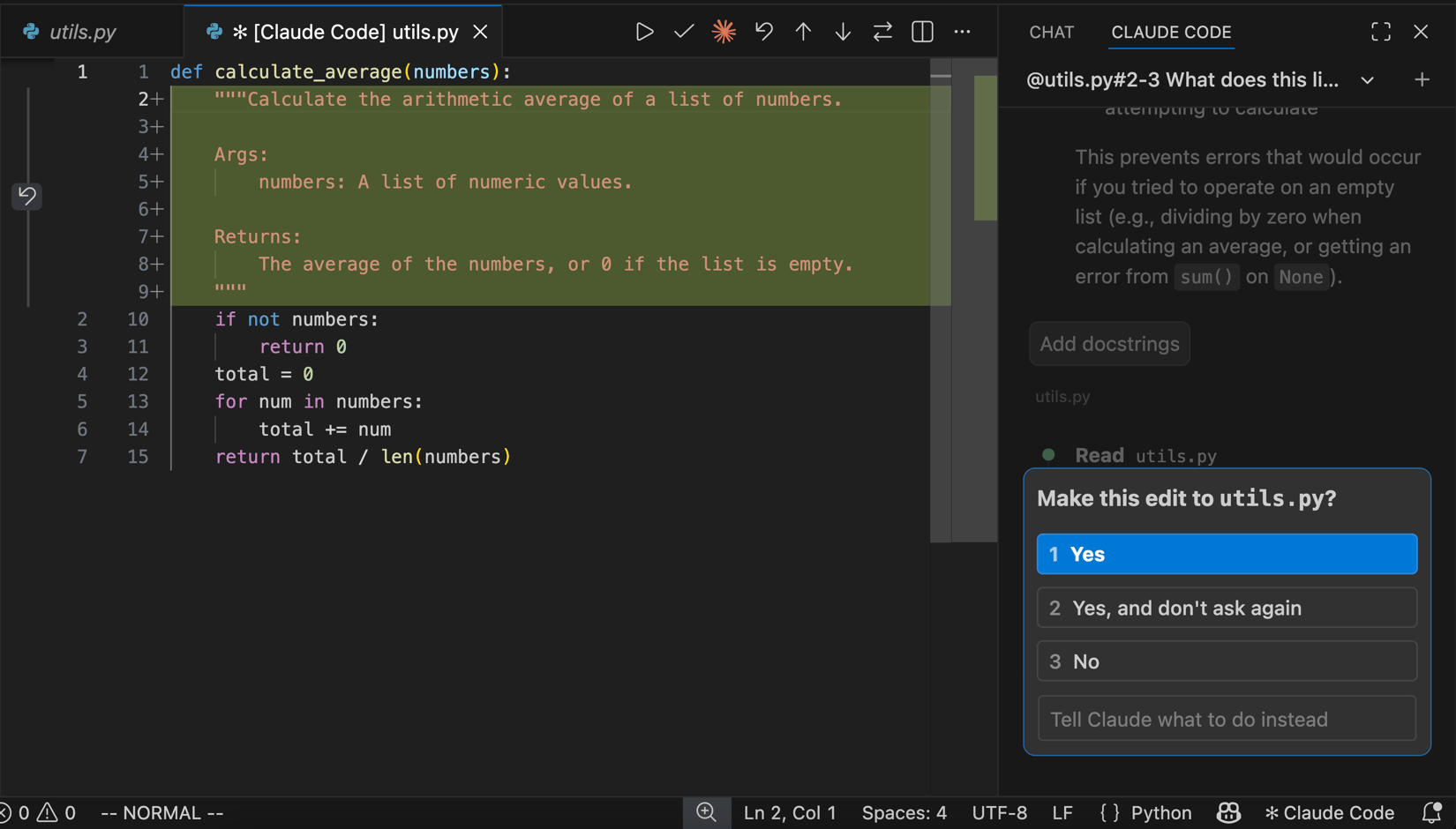
Reviewing a proposed edit in Manual mode. Screenshot: Anthropic, Claude Code docs.
Good to know
- Ctrl + Esc (Mac: Cmd + Esc) jumps between the editor and the Claude panel.
- Plan mode opens Claude’s plan as a document you can comment on before it starts.
- Several conversations can run in separate tabs. A blue dot on the Spark icon means one of them is waiting for your approval.
- The panel can be dragged anywhere: right side, bottom, its own window.
- VS Code also has a built-in terminal (**Ctrl +
**). If you installed the terminal client,claude` works there too. Same agent, third window.
Official documentation
- Use Claude Code in VS Code
- VS Code download and VS Code basics (Microsoft)
Related
- Choosing a client
- Your first session
- Folder - why the Explorer on the left matters