The status line is a line of text under the prompt in the terminal client. It can show the model you are using, the folder you are in, how full the context window is, and how much the session has cost so far. It stays there while you work, so you stop wondering.
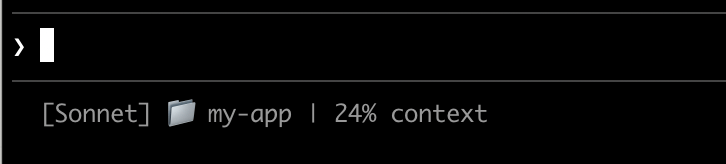
A status line showing the model, the folder and the context percentage. Screenshot: Anthropic, Claude Code docs.
It is also the first thing in this course that Claude sets up for itself, and that is the point of the exercise. You type one sentence. It writes two files. You watch each step.
The one-sentence way
Inside Claude Code, type:
/statusline show the model, the folder name and how full the context isWatch what happens in the conversation. Claude writes a small script into your Claude folder, %USERPROFILE%\.claude on Windows and ~/.claude on Mac (~ means your home folder), and adds a statusLine entry to settings.json in the same folder. The new line appears under the prompt as soon as the files are saved. There is nothing to restart.
Say it your way. Anything you can describe works: “show the model and the time”, “show the folder and how much of my five-hour limit is left”, “add a progress bar for the context”. To change it later, run /statusline again with the new wording. To remove it:
/statusline remove itThe shortcut hint goes away
With a status line on, Claude Code stops showing most of the small hints in the footer, including
? for shortcuts. The?key still works on an empty line, and the mode label stays.
What it can show
The script gets a small packet of facts from Claude Code every few seconds and shows what you asked for. The facts include:
| Fact | What it is |
|---|---|
| Model | The display name of the current model, for example Opus 5.5. |
| Folder | The folder Claude is working in. Most people show just the last part of the path. |
| Context | How full the context window is, as a percentage. |
| Cost | The estimated cost of this session at list prices. On a subscription this is only a guide; see Usage limits. |
| Limits | On Pro and Max, how much of the five-hour and weekly allowance is used. |
The manual way
If /statusline does not work on your machine, or you want to see exactly what it does, make the two files yourself. You need a text editor such as Notepad or TextEdit and the folder %USERPROFILE%\.claude (Mac: ~/.claude).
To reach that folder on Windows, press Ctrl + L in Explorer, type %USERPROFILE%\.claude and press Enter. On a Mac, press Cmd + Shift + G in Finder and type ~/.claude. Pin the folder to Quick access or the sidebar so you never need the trick twice.
Windows
-
In
%USERPROFILE%\.claude, create a file calledstatusline.ps1with this content:$input_json = $input | Out-String | ConvertFrom-Json $cwd = $input_json.cwd $model = $input_json.model.display_name $used = $input_json.context_window.used_percentage $dirname = Split-Path $cwd -Leaf if ($used) { Write-Host "$dirname [$model] ctx: $used%" } else { Write-Host "$dirname [$model]" } -
Open
settings.jsonin the same folder. If it does not exist, create it with just{}inside. Add astatusLineentry so the file looks like this (keep anything that is already there):{ "statusLine": { "type": "command", "command": "powershell -NoProfile -File ~/.claude/statusline.ps1" } }The path in
commanduses forward slashes on purpose. Backslashes break here. If~does not work on your machine, write the full path with forward slashes:C:/Users/<your name>/.claude/statusline.ps1.
Mac
-
In
~/.claude, create a file calledstatusline.sh:#!/bin/bash input=$(cat) MODEL=$(echo "$input" | jq -r '.model.display_name') DIR=$(echo "$input" | jq -r '.workspace.current_dir') PCT=$(echo "$input" | jq -r '.context_window.used_percentage // 0' | cut -d. -f1) echo "[$MODEL] ${DIR##*/} | ${PCT}% context"The script uses a small helper called
jq. If the status line stays empty, install it withbrew install jqin Terminal. -
In Terminal, make the script runnable:
chmod +x ~/.claude/statusline.sh -
Add this to
~/.claude/settings.json:{ "statusLine": { "type": "command", "command": "~/.claude/statusline.sh" } }
Claude Code reads the settings file again as soon as you save it. If nothing appears, see below.
If something goes wrong
Nothing appears under the prompt
Type
/exitand startclaudeagain. Check thatsettings.jsonstill has valid JSON: every{closed, a comma between entries, no comma after the last one. Then check the path incommanduses forward slashes, even on Windows. On a Mac, check the script is runnable (chmod +x, step 2 above).
It worked once and then disappeared
The script may be printing an error instead of text. Ask Claude in plain words: “read my statusline script and settings.json and tell me why the status line is empty”. It can run the script for you and show the error.
Windows: I wrote the path with backslashes
Claude Code runs the command through Git Bash when that is installed, and Git Bash eats backslashes.
C:\Users\you\.claude\statusline.ps1arrives with no separators and fails without a message. Use~/.claude/statusline.ps1orC:/Users/<your name>/.claude/statusline.ps1.
I want it gone
Inside Claude Code:
/statusline remove it. By hand: delete thestatusLineentry fromsettings.json. The script file can stay or go.
Official documentation
- Customize your status line, including the Windows section and more examples
- Settings for where
settings.jsonlives and what else it can hold
Related
- Claude Code cheat sheet - every key and command on one page
- Context window - what the percentage measures
- Usage limits - what the cost and limit numbers mean on a subscription
- Instructions file - the other files that live in the same
.claudefolder, and the Windows trick for getting there