The terminal client is Claude Code with nothing in the way: a text window, your folder, and a conversation. It looks bare, and that is the point. Everything you learn here works identically in the other clients.
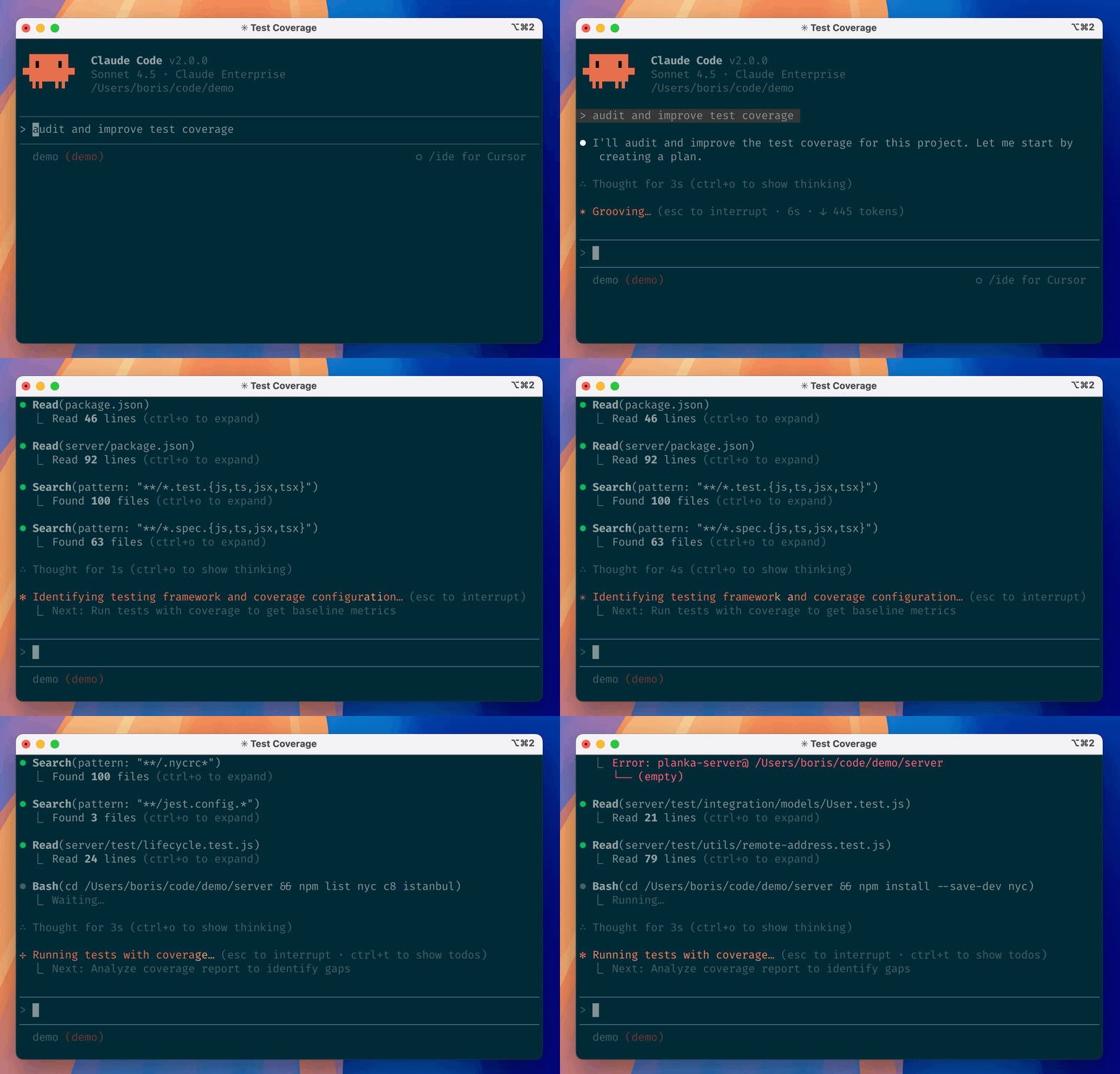
Claude Code in a terminal. Animation: Anthropic, from the official repository.
Not installed yet? Install Claude Code on Windows or Install Claude Code on Mac.
Starting
Get a terminal window inside your project folder, then type claude. The easy way needs no typing of paths:
- Windows: in Explorer, right-click the folder and choose Open in Terminal.
- Mac: drag the folder from Finder onto the Terminal icon in the Dock, or right-click it, Services, New Terminal at Folder.
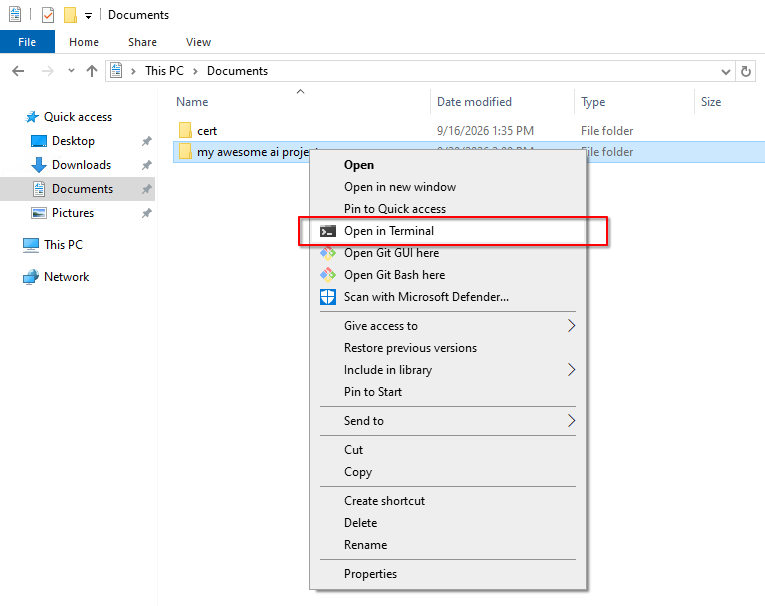
Explorer’s right-click menu. Screenshot: Petr.
The typing way, if you prefer it:
cd Documents\ai-school      (Windows)
cd ~/Documents/ai-school    (Mac)
claude
The welcome screen shows the version, the current model and the folder you are in. Whatever is in that folder, Claude can read. Nothing outside it, unless you allow it when asked.
Talking
- Type a sentence, press Enter. That is a prompt.
- Claude answers in text, and when it wants to act (read a file, write a file, run a command) it either asks you first or shows you what it did, depending on the permission mode below.
- Esc interrupts Claude mid-work. Nothing breaks; type what you want instead.
- Esc twice on an empty line opens the rewind menu: pick an earlier point and the files Claude edited go back to how they were. Moves and deletes done by commands are not covered; see Working safely.
- Arrow up brings back your previous prompt. You cannot click on things in a terminal; use the arrow keys.
- Type
@and the start of a filename to point Claude at a specific file:summarise @notes.md. That is a file mention; dragging a file into the window does the same. - Type
?on an empty line and every keyboard shortcut is listed. The full set is on the Claude Code cheat sheet.
Permission modes: who approves what
The full picture is in Permission mode. In the terminal:
Press Shift + Tab to cycle through modes. The current one is shown above the prompt line.
| Mode | What happens | When to use |
|---|---|---|
| Manual | Claude asks before every edit and every command. You press Enter to approve. | You can read the commands it wants to run. |
| Accept edits | File edits happen without asking; other commands still ask. | Once you trust it with a folder. |
| Plan | Claude only reads and writes a plan. Nothing changes until you approve it. | Any task big enough to go wrong. Start here. |
| Auto | A second, small model checks each action in the background and lets the safe ones through. | Doing the work, once you agree with the plan. |
On paid plans a fresh session starts in Auto.
The habit worth building is Plan, then Auto: press Shift + Tab to Plan, describe the task, read the plan it writes, and when you agree, choose “Yes, and use auto mode”. You approve the work in plain English instead of approving shell commands you cannot read. Permission mode explains why that matters more than it sounds.
The commands you need first
Anything that starts with / is a slash command: an instruction to the program, not to the model. Type / alone and the whole menu opens. These are the ones to learn first; the full list is on the Claude Code cheat sheet.
| Type | Does |
|---|---|
/help | Lists everything available. |
/clear | Starts a fresh [[Session |
/resume | Shows your saved sessions in this folder and brings back the one you pick. |
/exit | Leaves Claude Code. Ctrl + D twice does the same. |
/login | Signs in again or switches accounts. |
/model | Picks a different model tier. See Claude model family. |
/context | Shows how full the [[Context window |
/usage | Shows how much of your five-hour and weekly allowance is left. See Usage limits. |
/statusline | Sets up a line under the prompt with the model, the folder and the context percentage. Say what you want in plain English. See Set up a status line. |
Back in the terminal (after /exit), two starters worth knowing: claude -c continues your most recent conversation in this folder, claude -r lets you pick an older one.
Several things at once
One terminal tab is one conversation. Open a second tab (Ctrl + Shift + T in Windows Terminal, Cmd + T on Mac) and start claude in another folder to run two agents side by side. People who do this a lot use a terminal that remembers layouts, such as Okena or tmux; Petr runs Konsole and Okena on Linux. Optional.
Official documentation
- Quickstart and Terminal guide for new users
- Permission modes
- Built-in commands and CLI reference
- Terminal configuration for a nicer-looking terminal
Related
- Claude Code cheat sheet - every key and command on one page
- Terminal - what a terminal is, in plain words
- Permission mode - the four modes in detail
- Session -
/clear,/resumeand the rewind - Usage limits - what
/usageis telling you - Your first session - the homework exercise
- Choosing a client