Twenty minutes, one command to install, one browser sign-in. You do not need to know anything about terminals; this guide shows every step, and you will never have to type a folder path. If you would rather avoid the terminal entirely, the desktop app is the same agent with buttons.
Before you start
Windows 10 (version 1809 or newer) or Windows 11. Almost certainly what you have.
A paid Claude plan through work (Pro, Max, Team or Enterprise). The free plan does not include Claude Code.
About 20 minutes and a network connection.
Step 1: Install Git for Windows (optional, recommended)
Git is a program programmers use to track file changes. You will not use it yourself yet, but installing it gives Claude an extra tool: Bash, a second way to run commands next to PowerShell. We will meet Git properly later in the course.
Run it and click Next on every screen. The installer has many screens; the defaults are fine.
If you already have Git, or would rather skip this, skip it. Claude Code works without it.
Step 2: Open the Terminal app with PowerShell
Windows 11 comes with an app called Terminal. It is a window with tabs, and each tab runs a command shell. We want a PowerShell tab.
Press Win + X and choose Terminal. Or press the Windows key, type Terminal and press Enter.
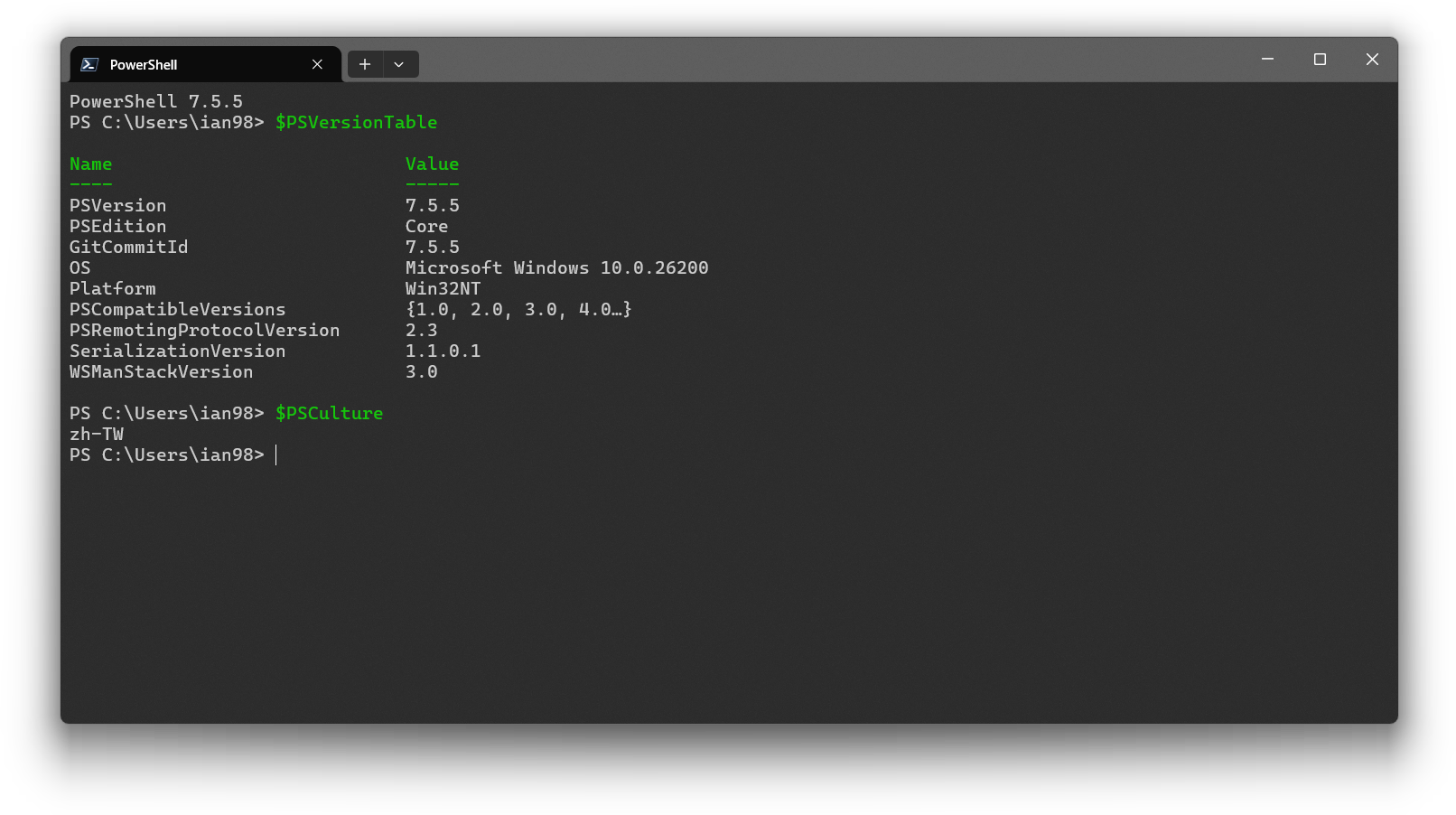
Look at the start of the line in the window. It should read something like PS C:\Users\YourName>. The PS means PowerShell. Good.
Windows Terminal with a PowerShell tab. Screenshot: Wikimedia Commons, MIT licensed.
Use the Terminal app, not the old windows
Windows also has an older blue “Windows PowerShell” window and a black “Command Prompt” (CMD). Both can technically run Claude Code, but in our testing on Windows 11 the Terminal app with a PowerShell tab is the one that behaves. If the line starts with C:\Users\YourName> without PS, you are in CMD: close it and open Terminal.
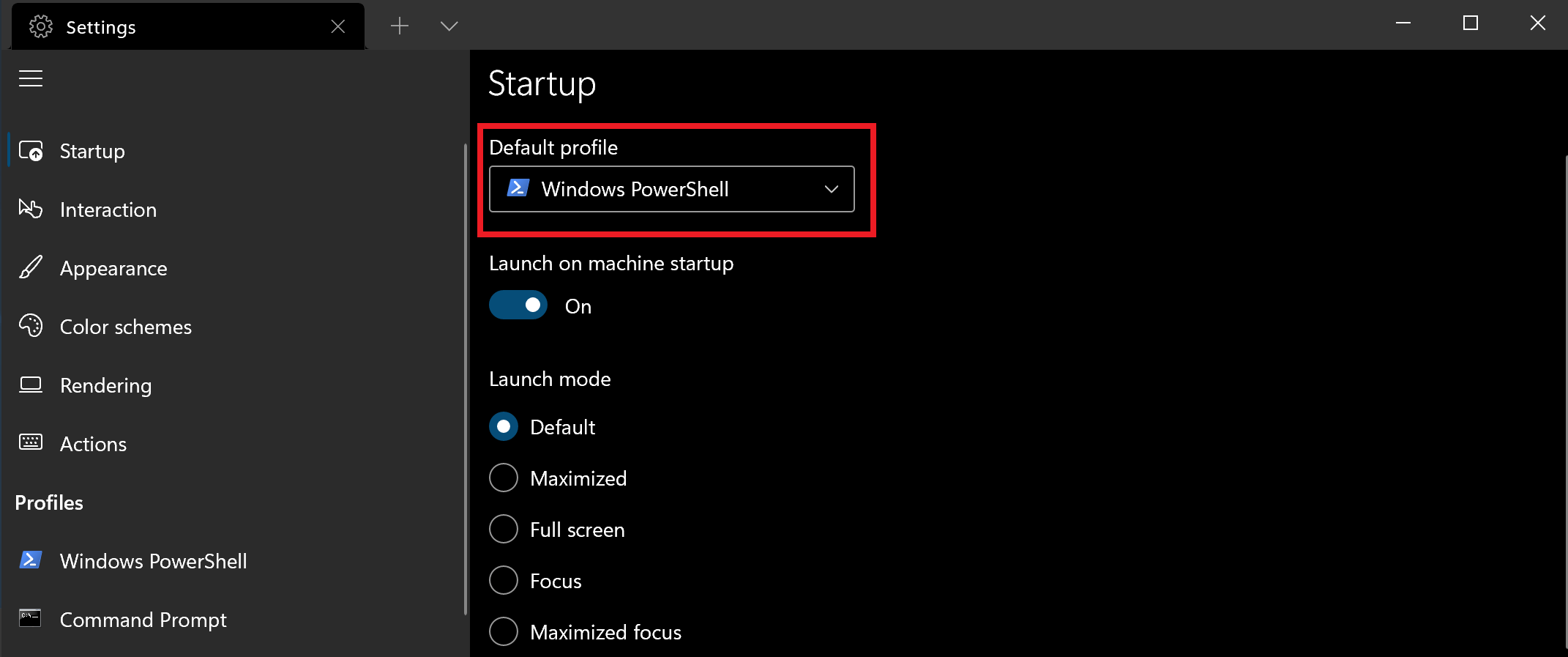
If your Windows does not have the Terminal app, install it free from the Microsoft Store. To make PowerShell the default tab, open Terminal’s Settings, choose Startup, and set Default profile to PowerShell.
Setting the default profile. Screenshot: Microsoft Learn, CC BY 4.0.
Step 3: Install Claude Code
Copy this line, paste it into the Terminal window (right-click pastes, or Ctrl + V) and press Enter:
irm https://claude.ai/install.ps1 | iex
Text scrolls for a while. It ends with “Claude Code successfully installed!”. If you see an error instead, jump to If something goes wrong.
Check it worked:
claude --version
You should see a version number followed by (Claude Code). Claude Code keeps itself up to date from now on. You can close this window.
Step 4: Open a folder in Terminal, the Explorer way
Claude Code works inside the folder you start it from. That folder is your project. You do not need to navigate to it with commands; Explorer does it for you.
Open Explorer, go to Documents and create a new folder called ai-school (right-click, New, Folder).
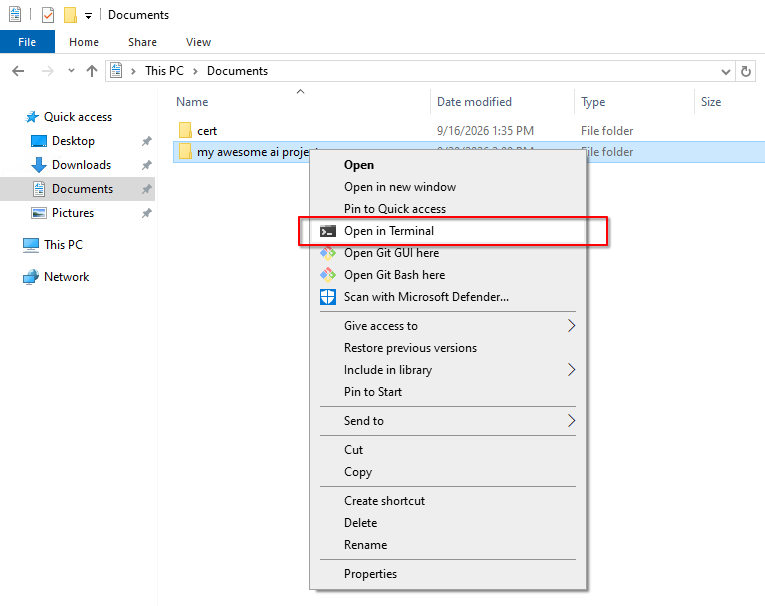
Right-click the new folder and choose Open in Terminal.
Right-click a folder in Explorer and choose Open in Terminal. On Windows 11 the item is in the first menu; on older Explorer versions it is in the classic menu. Screenshot: Petr.
A Terminal window opens already inside that folder: the line ends with \ai-school>. That is the whole trick. Whenever you want Claude to work in a folder, right-click it and pick Open in Terminal. Same folder, two windows: Explorer shows it as icons, Terminal as a path.
Prefer typing? The command way
In any Terminal window, cd moves you into a folder and mkdir creates one:
You can also type cd , then drag a folder from Explorer into the Terminal window; Windows pastes the path for you.
Step 5: Start Claude Code and sign in
In that Terminal window, type:
claude
The first time, Claude Code asks you to log in. Choose the Claude account option, press Enter, and a browser window opens. Sign in with your work account and confirm. Back in the Terminal, you see a welcome screen with the version, the model and your folder. You are in.
Step 6: Say something
Type a sentence and press Enter:
what is in this folder?
It is empty, so Claude tells you so. Now put something in it: copy any document into Documents\ai-school using Explorer, then ask again. Continue with Your first session for the homework exercise and the essentials (Esc stops Claude, /help lists commands, /exit leaves; all of them are on the Claude Code cheat sheet).
If something goes wrong
"irm is not recognized"
You are in CMD, not PowerShell. Close the window and open Terminal (Win + X). The line must start with PS.
"claude is not recognized" after installing
The install worked, but Windows does not yet know where to find it. Close the Terminal window completely, open a new one, and try claude again. If it still fails, paste these two lines, press Enter, then open a new window once more: